Printer Easy Connect
Bought a printer and not sure how to hook it up to your PC? This app finds printers on the same Wi-Fi, LAN or USB and walks you through adding one to Windows, step by step.

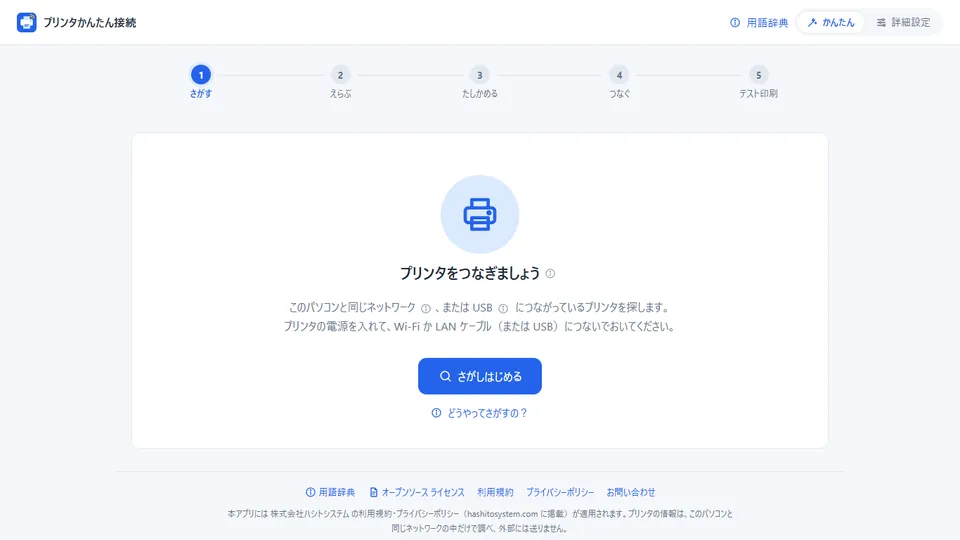
Just five steps
- 1Search
- 2Pick
- 3Check
- 4Connect
- 5Test print
In Easy mode it searches the network and USB at the same time and picks the best way to connect the printer you choose. For experienced users, or when something goes wrong, Advanced mode lets you choose the connection type and driver yourself.
What it does
Searches network and USB together
Finds printers on the same network with Bonjour, WSD, SNMP and port checks, and lists USB printers alongside them.
Driverless printers connect as-is
IPP Everywhere and Mopria printers use the driver built into Windows. For models that need a driver, it links to the maker's official page.
Older models and office MFPs too
It can sometimes find older printers that only speak SNMP v1 or LPR, print servers, and printers on parallel (LPT) or Bluetooth.
Tricky words explained
Tap the ⓘ next to a term to open a short explanation with diagrams, such as what a driver is or where to find an IP address.
Screens
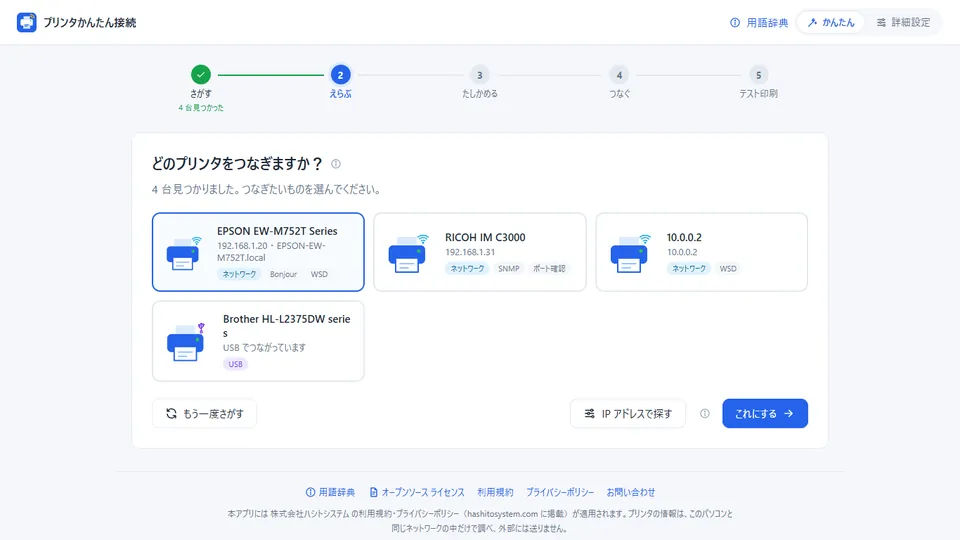
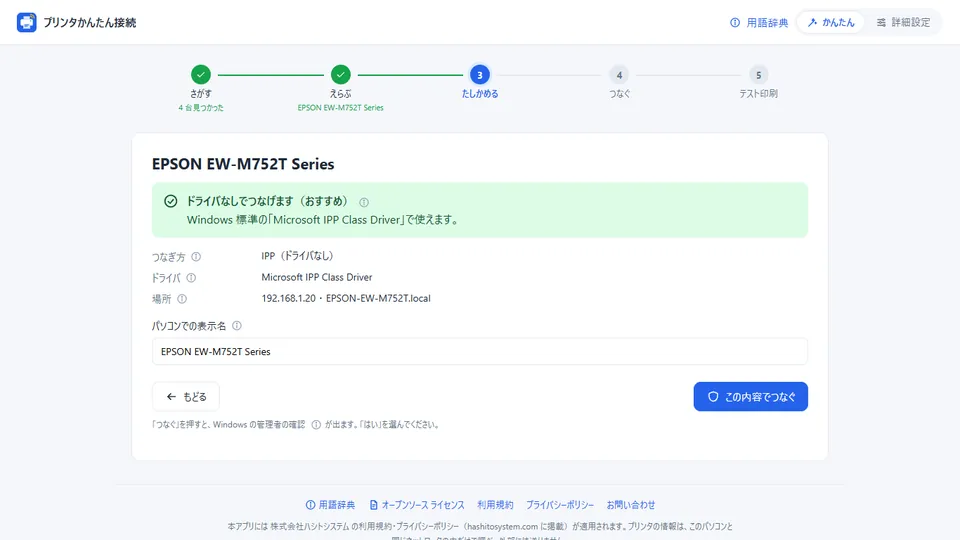
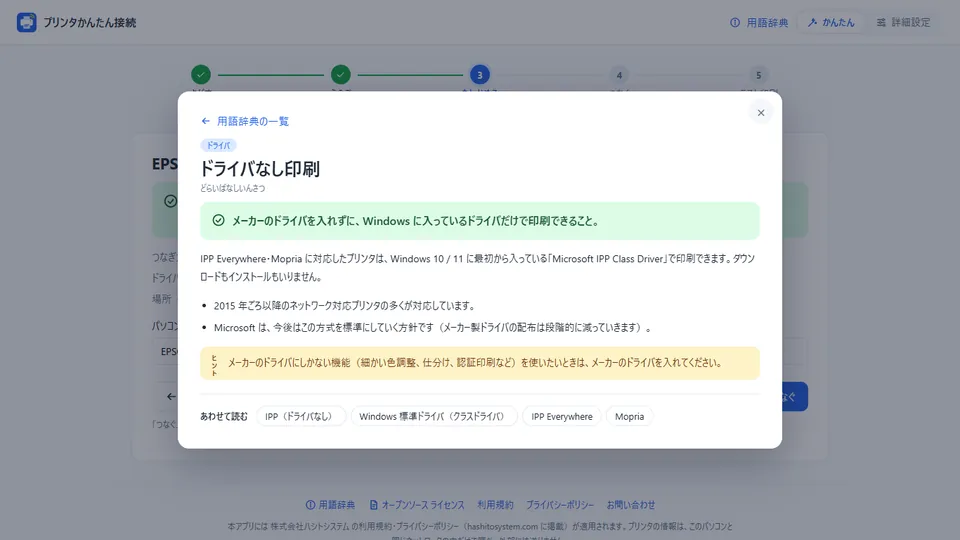
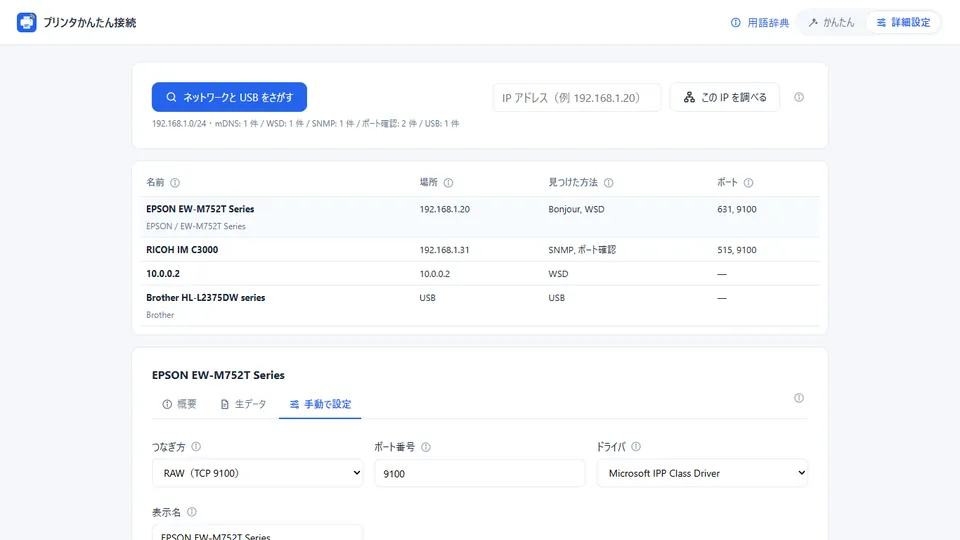
FAQ
Does it help when Windows 11 cannot find my printer?
Yes. It searches the same network with its own methods (Bonjour, WSD, SNMP and port checks) in addition to what Windows Settings does, so it can sometimes find printers that do not show up in Settings. If it still finds nothing, you can type the printer's IP address and check that one printer directly.
Do I need a driver?
Printers that support IPP Everywhere or Mopria work with the driver built into Windows, so no extra driver is needed. For models that need the maker's driver, the app points you to the maker's official page. The app never distributes drivers itself.
Does it work with USB printers?
Yes. It looks for USB printers at the same time as network printers. It can sometimes find older printers connected by parallel (LPT) or Bluetooth as well.
Is any printer information sent outside?
No. It only checks printers inside the same network as your PC. There are no ads either.
What are the requirements and price?
It runs on Windows 10 (version 1809 or later) and Windows 11. It costs 120 yen on the Microsoft Store, with no in-app purchases. The app's screens are currently in Japanese only.
Printer won't connect? Give it a try.